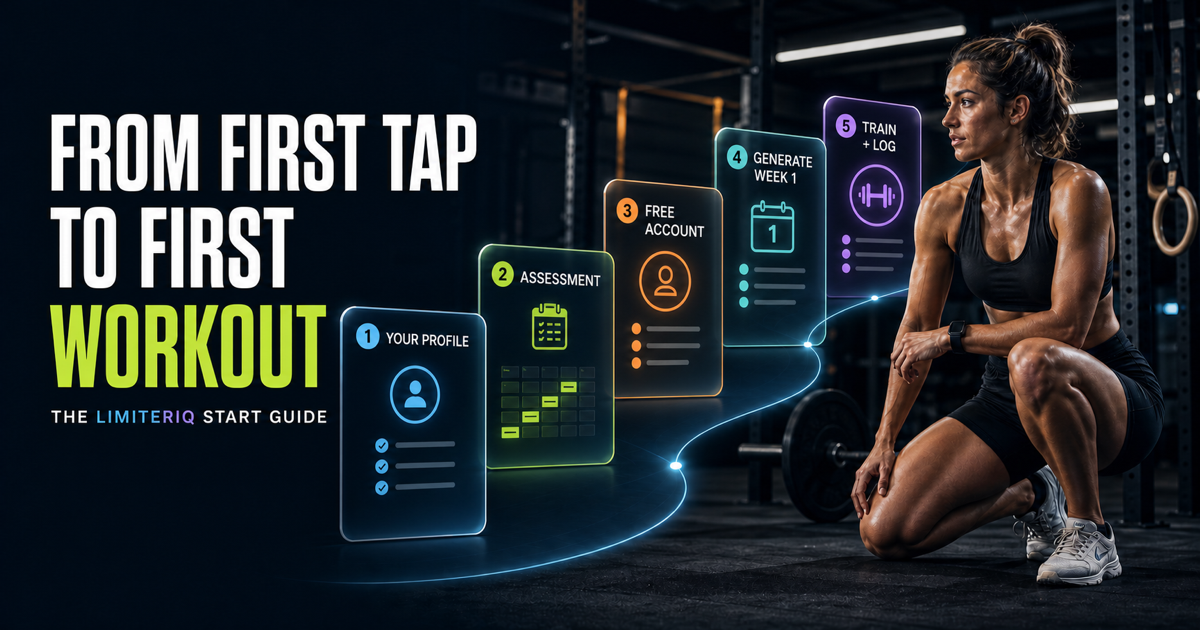
LimiterIQ finds the one system costing you the most race time: your limiter: and builds your week around improving it. Your limiter may be Running, Engine, Strength, Station Skill, Durability, Pacing or Consistency. Equipment can constrain the plan without becoming a verdict on your fitness.
Before you start: a phone or laptop with internet, an email address you can open on that device, and about 10 minutes. You do not need a credit card. Creating your free account unlocks the adaptive plan.
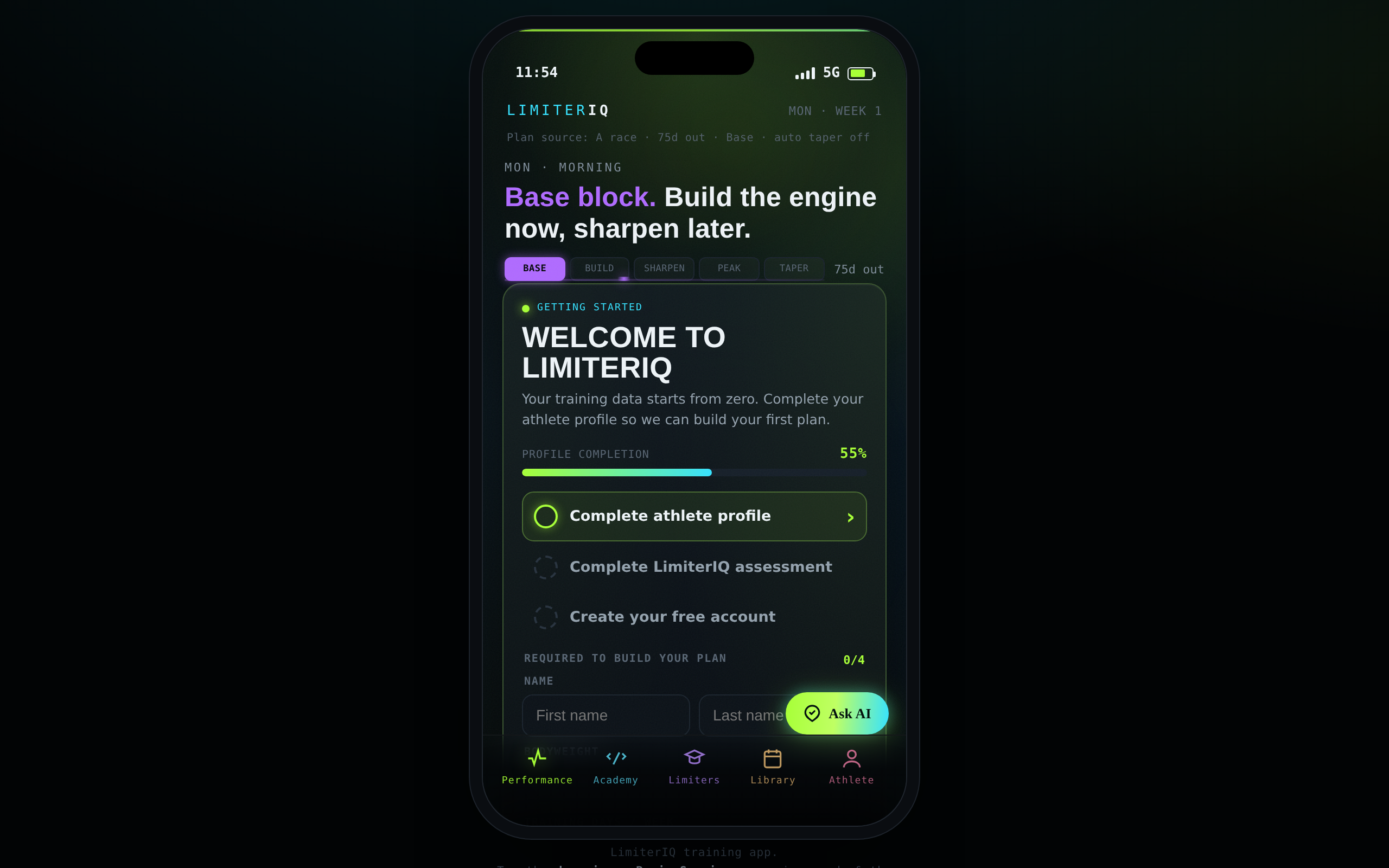
1. Open the app
- Open Safari, Chrome or your desktop browser.
- Go to https://app.limiteriq.app.
- Wait for “LimiterIQ setup: Find your limiter. Train what matters.”
Add it to your home screen
iPhone: Safari → Share → Add to Home Screen → Add. Android: Chrome ⋮ menu → Add to Home screen or Install app → Add. LimiterIQ is a web app; do not search an app store.
2. Add your name
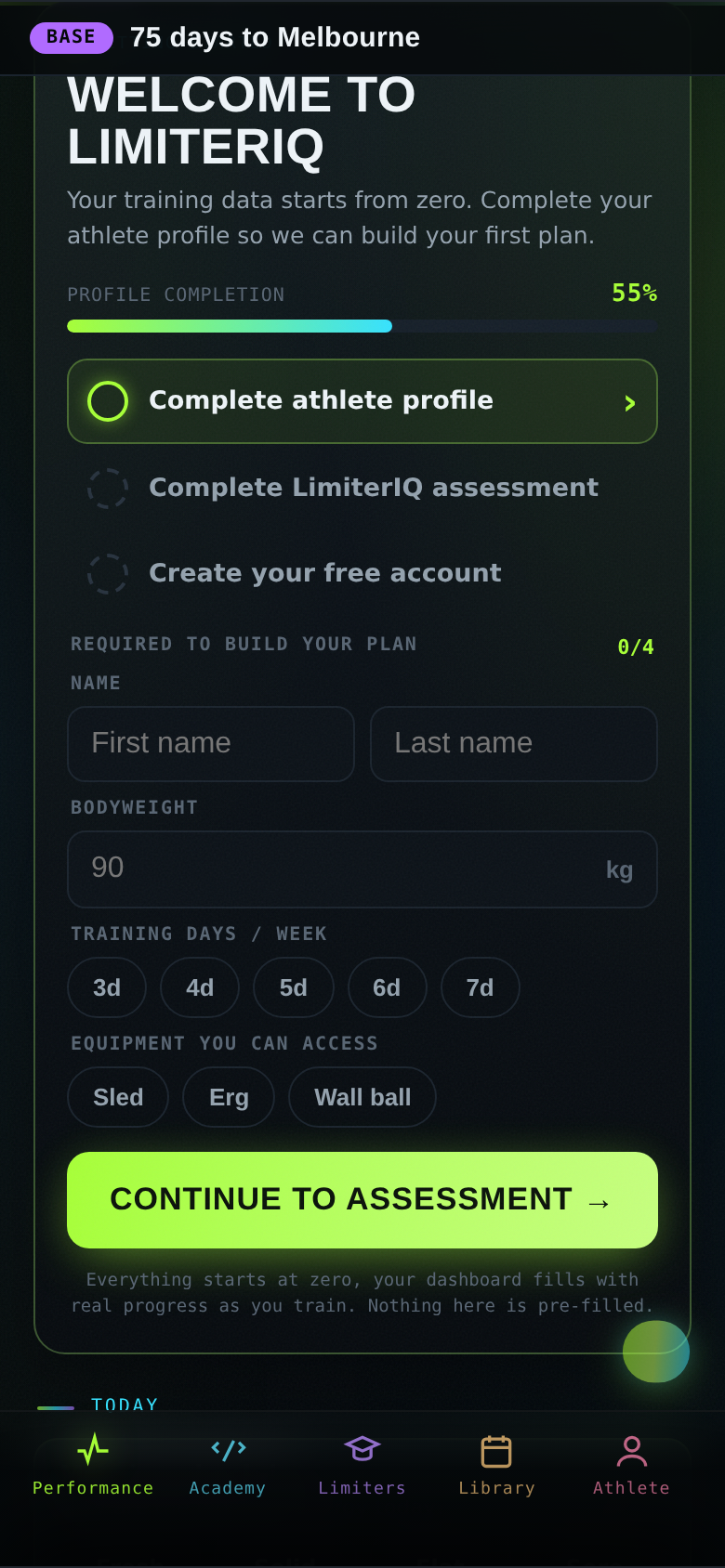
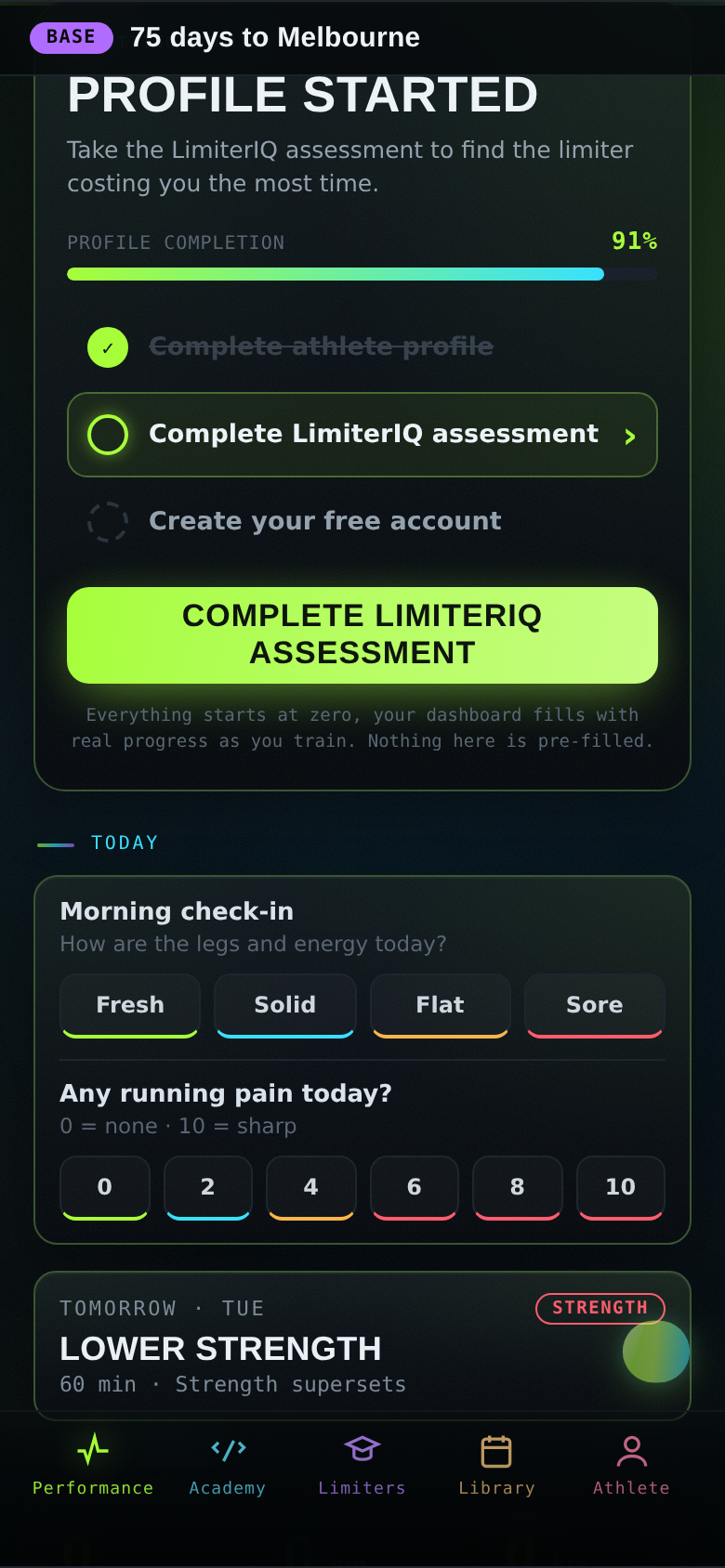
The Getting started card now shows the shortest path to a usable plan:
- Add your name
- Complete LimiterIQ assessment
- Create your free account
Enter your first and last name. Bodyweight, training days and equipment are covered inside the assessment, so you answer them once in the place they affect the diagnosis.
Honest and rough beats perfect and stalled. Your dashboard starts at zero and fills with your real training.
3. Take the assessment
Tap Find my likely limiter. The assessment opens with “Step 1 of 8 · Athlete basics · 1/28 · about 5 min remaining”. Each answer shows which score it feeds and which systems it affects. Tap an answer, then use Continue → when the screen needs confirmation; use the back arrow to correct one. Age and bodyweight use plus/minus steppers.
| Block | What it learns |
|---|---|
| You | Age, race category and bodyweight set recovery, load tolerance and station standards. |
| Training history | Experience, current days, session length and realistic weekly consistency. |
| Running + engine | 5K, easy pace, volume, post-station fade, Zone 2 and recovery between efforts. |
| Strength + stations | Relative strength, pull-ups, race history, wall balls, sleds, row and costly stations. |
| Durability + pacing | Late-race legs, injuries, pacing approach and primary goal. |
| Equipment + race date | Available kit, sled access, race name, date and A/B/C priority. |
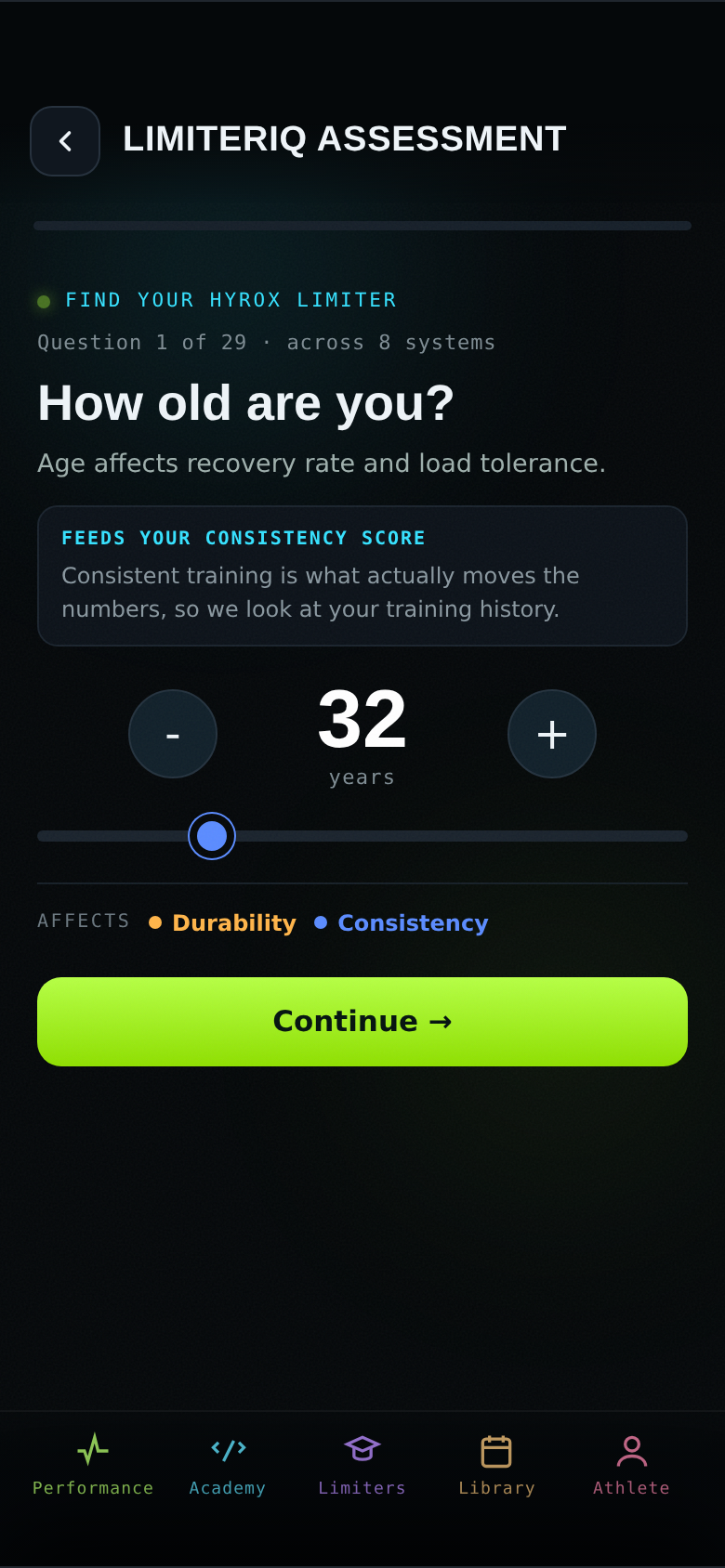
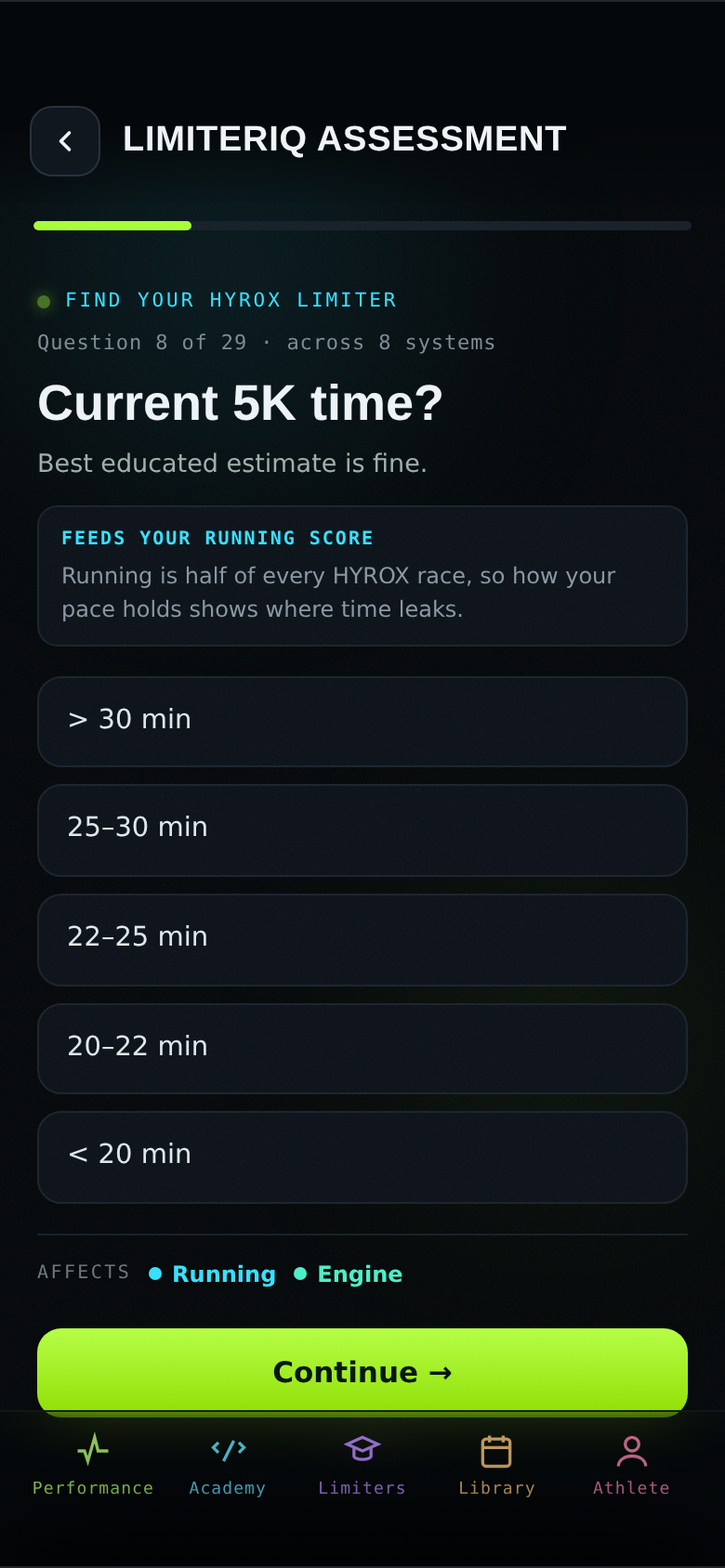
Best educated estimates are fine. Never raced? Use None yet, Haven’t raced yet or Not sure yet. Do not invent a finish time. Answer for the athlete you have been over the last few weeks.
4. Read your result
Your result gives you an overall readiness score, a band, an 8-system breakdown, a primary limiter with its own sub-score, an alternative explanation, a written reason and three first-week actions.
Your limiter is a current training priority, not a permanent label. Read the “why”; it explains what the plan will build next.
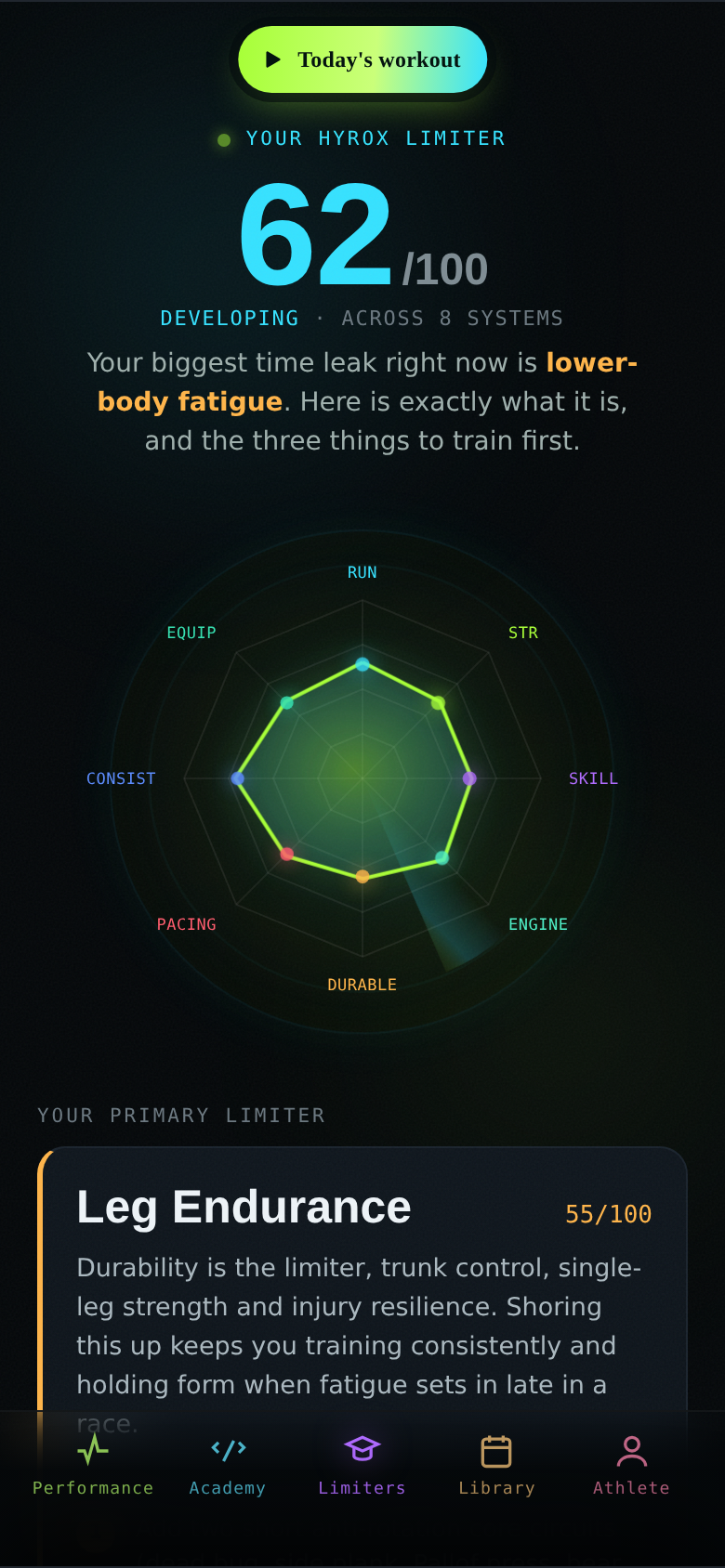
To update it later: Athlete → your profile → ↺ Retake assessment.
5. Create your free account
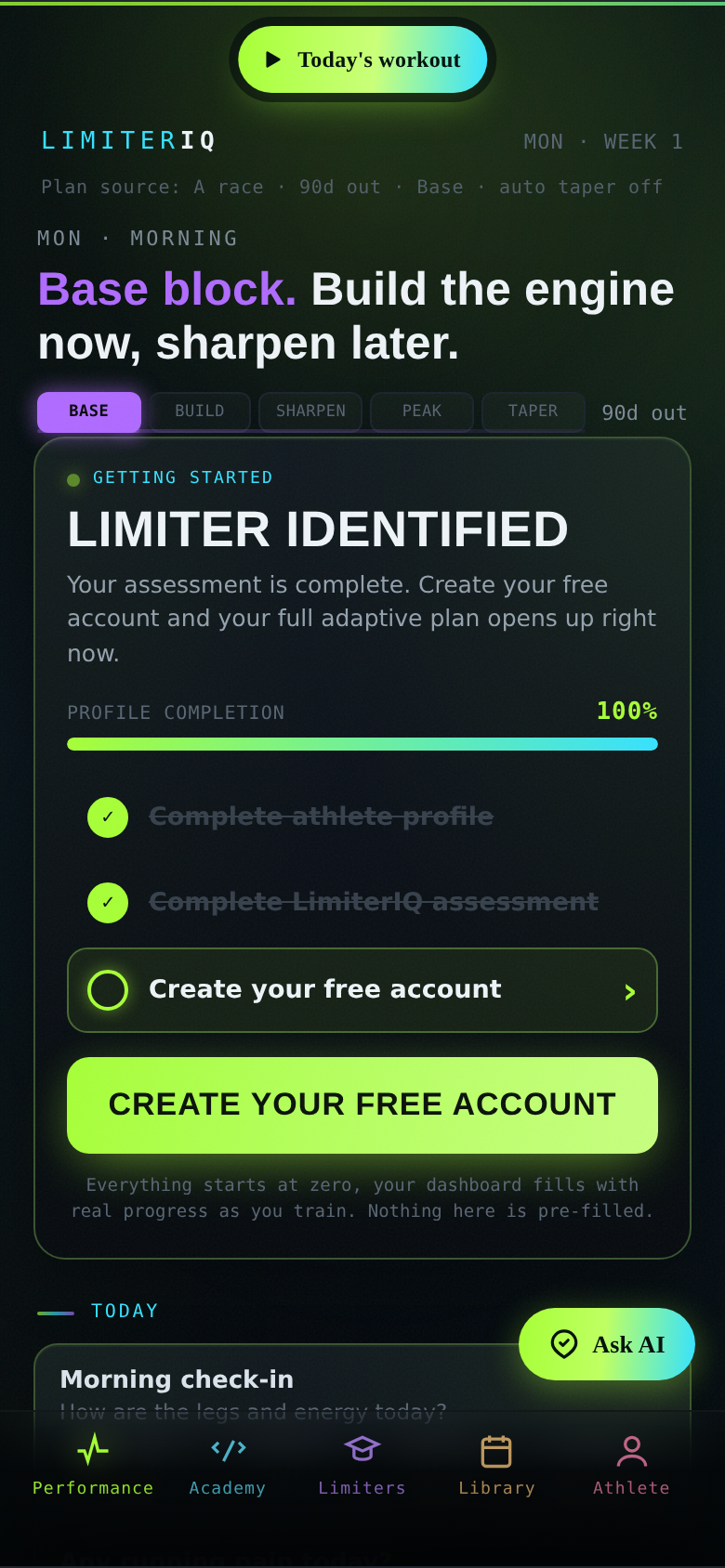
After the assessment, tap Save my diagnosis. Account setup explains the boundary clearly: create a free account to save your limiter diagnosis and build your complete Week 1. No card is required.
- Create account: enter your email, tap Continue →, then finish the account flow.
- Email me a sign-in link: use this when you want a one-time email sign-in path.
- Sign in: use this if you already have an account.
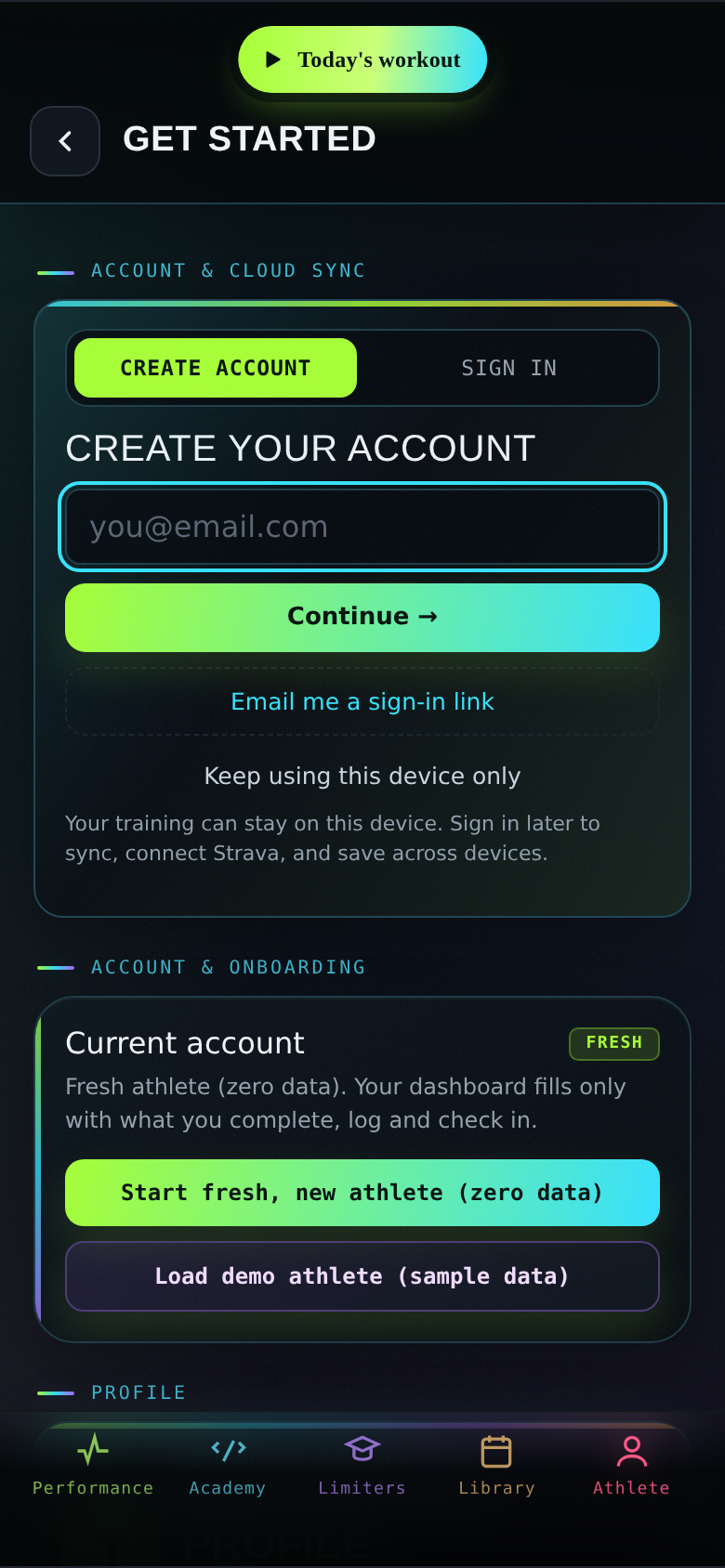
If you try to build Week 1 before the account is ready, LimiterIQ sends you back to the account step so your assessment can be saved.
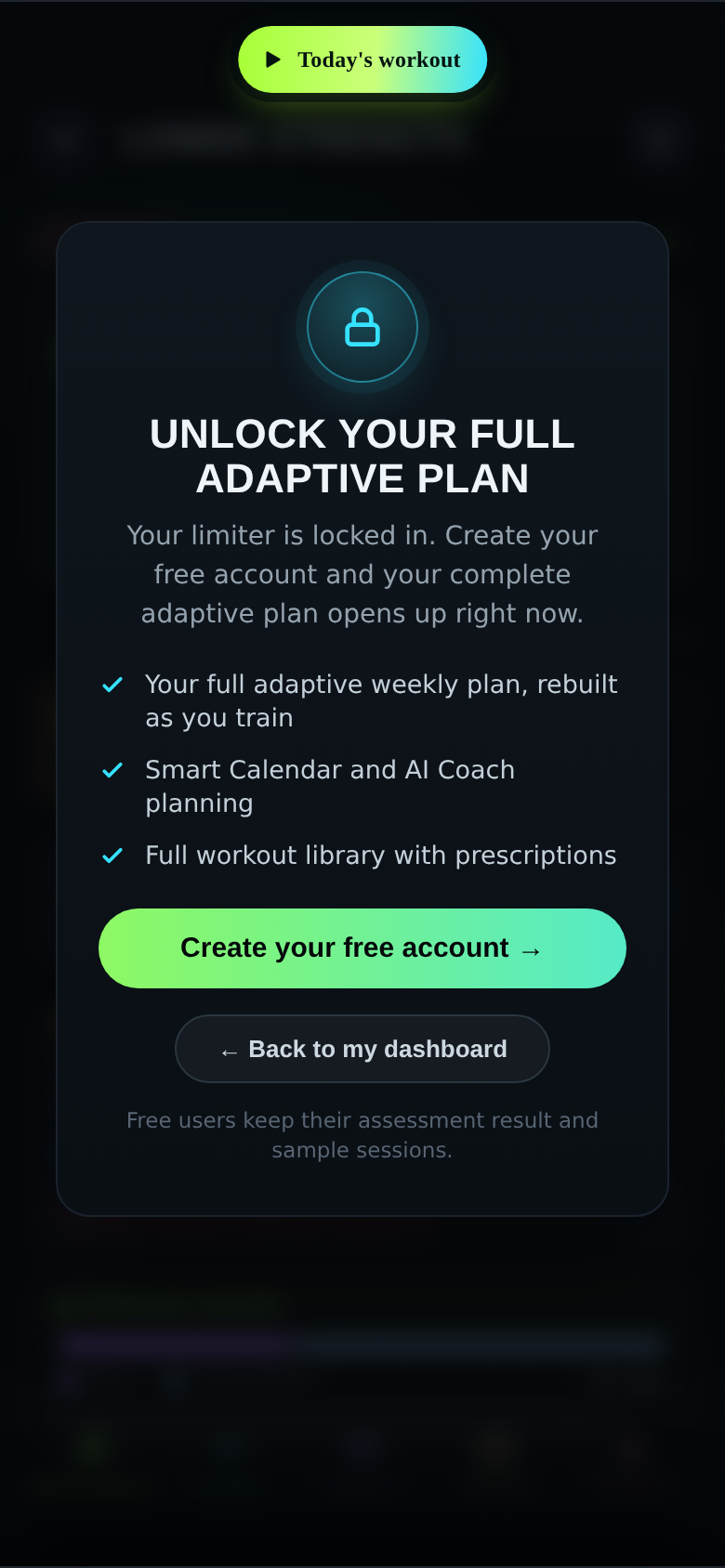
Training is free and no card or subscription is required. Create an account to save your assessment. Saving on one device does not by itself confirm cloud backup or cross-device recovery; check the saving status in Settings.
6. Build Week 1
Return to Performance and tap Build my complete Week 1.
Week 1 is baseline calibration, not hero volume. Judge it by whether you can complete it consistently.
7. Find and do today’s workout
- Open Performance.
- Complete the Morning check-in if it appears. It asks “How are the legs and energy today?” (Fresh / Solid / Flat / Sore) and “Any running pain today?” on a 0–10 scale; answer honestly because pain feeds the safety system.
- Open Today’s Workout.
- Read Coach Note first.
- Tap each exercise row for focus, quality gate, stop rule, progression, regression, sets, reps, load and rest.
- Read Prep & Safety; reduce impact when pain is above 2/10 and stop for sharp or worsening pain.
- Use the Session Shape bar to understand how the work is distributed.
- Work in order and tick the ✓ circle after each exercise.
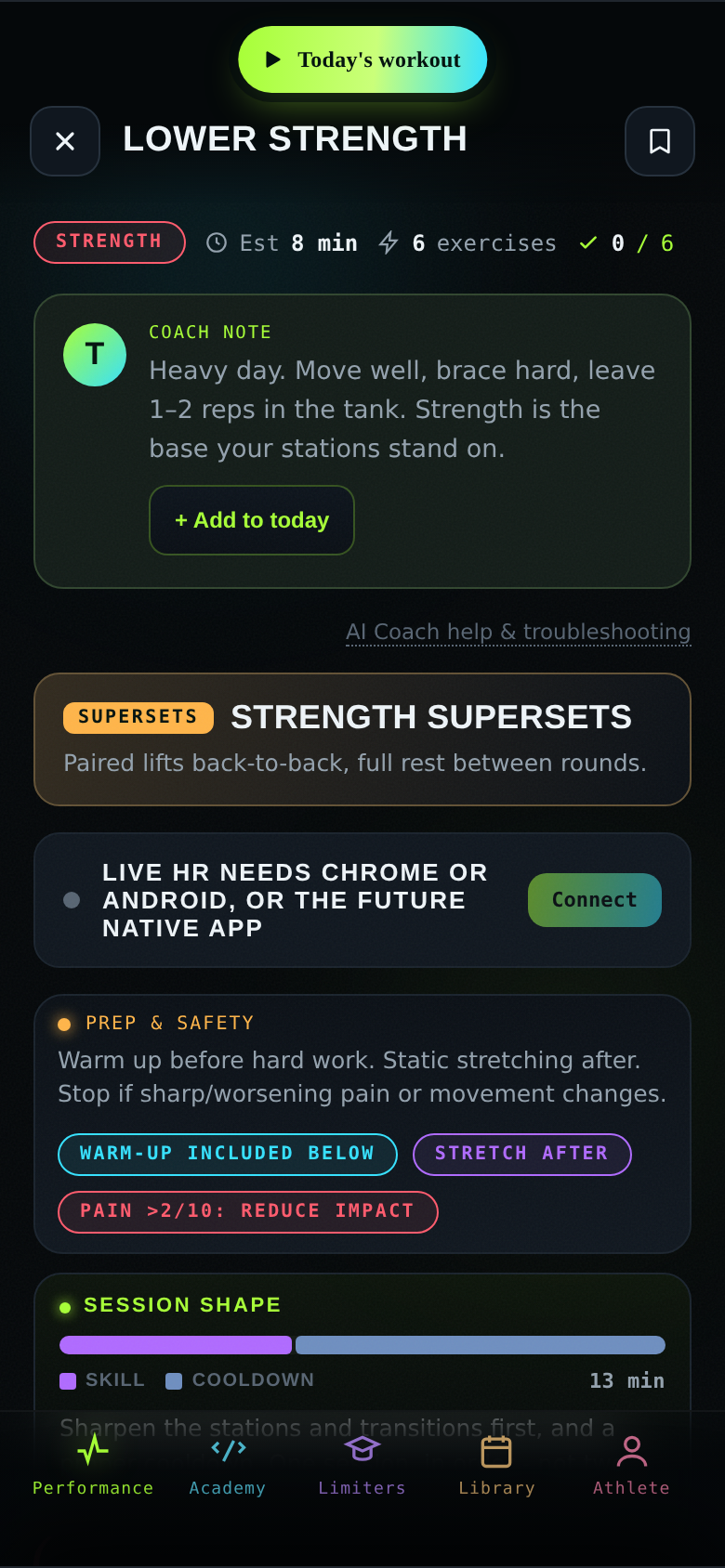
Start session opens the guided timer player. Gym Timer provides AMRAP, EMOM and Tabata clocks. RPE is difficulty out of 10. “RPE 8, 1–2 RIR” means one or two clean reps should remain.
8. Complete and log it
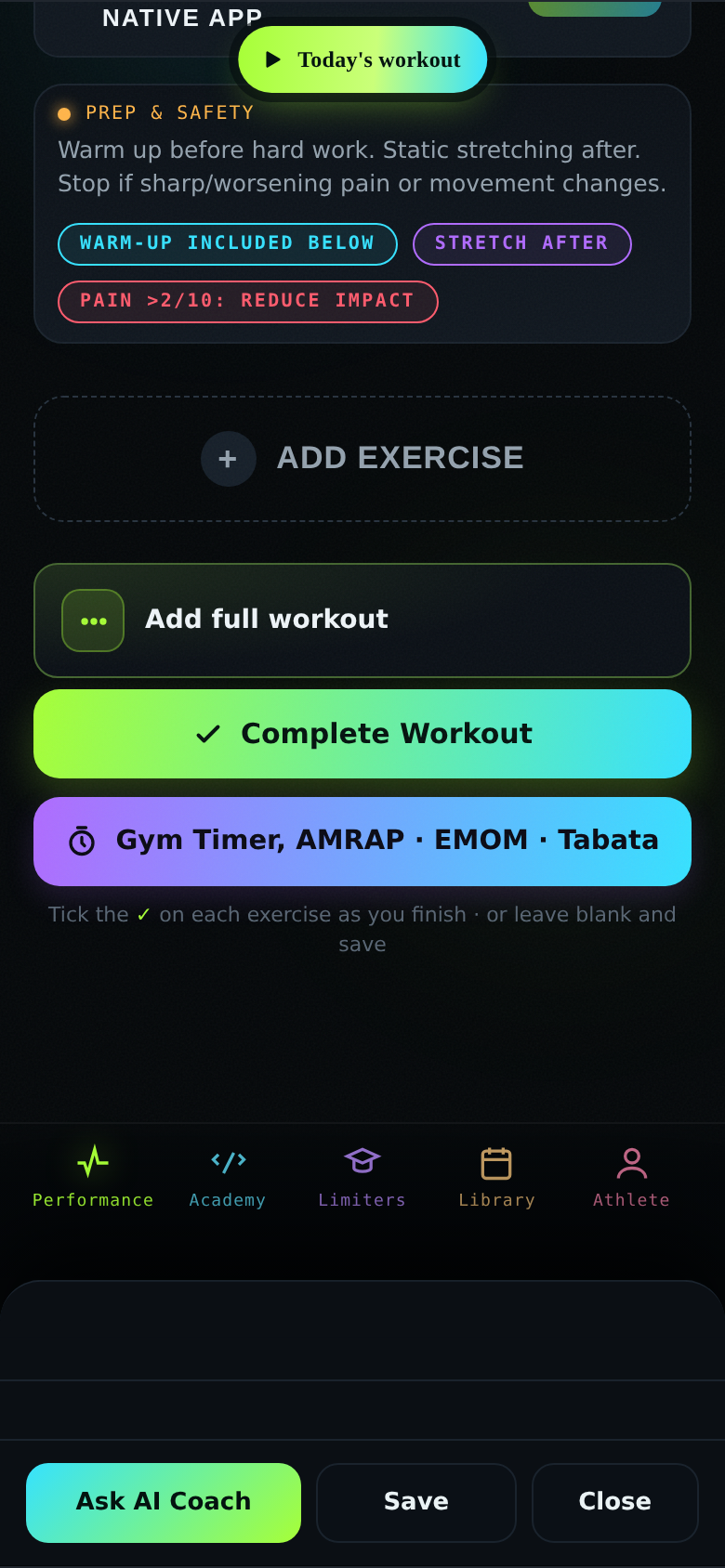
- Tap the lime ✓ Complete Workout.
- If exercises are unticked, use Finish anyway only when that is honest.
- Choose Too easy, About right or Too hard to describe how the prescription felt. Select one before saving.
- If relevant, select Pain or limitation or Equipment problem. These are optional.
- If a cooldown was prescribed, mark it Completed, Skipped or Not recorded.
- Tap Save feedback & see what comes next, then read the result and the next step offered. To finish without recording effort, choose Finish without feedback.
An unlogged workout cannot teach the adaptive plan. Completing the log closes the loop.
Every day after
Open app → Morning check-in → Today’s Workout → Complete Workout → select how it felt → save feedback. Rest days are scheduled on purpose. The five bottom tabs are Performance, Academy, Limiters, Library and Athlete. Read the next-session explanation to see whether the prescription changed.
Troubleshooting
| Problem | Fix |
|---|---|
| Sign-in email missing | Wait two minutes, check spam, tap Resend code and verify the email address. |
| Cloud unavailable | Keep working on-device; tap Retry connection when online. |
| Forgot password | Sign in → Forgot password? → email → Set new password, minimum 6 characters. |
| Today card is empty | Complete the highlighted step in Getting started: add your name, finish the assessment, create your free account or build Week 1. |
| Assessment is wrong | Athlete → your profile → ↺ Retake assessment. |
| Workout too hard or easy | Expand the row and read its regression or progression. After training, choose Too easy, About right or Too hard and save your feedback. |
Your plan starts with one honest answer.
Open LimiterIQ, add your name, finish the assessment, save your diagnosis and close the loop with one completed workout.
Open LimiterIQ →